Contents
- Index
Recording Traveler Payments
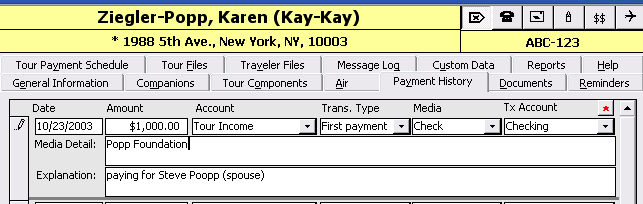
Use the Payment History Tab to track deposits and payments received from a traveler for tour costs and to record refunds to travelers who cancel.
1. Enter the payment date in the Date field.
2. Enter the payment Amount into the next field - the application will insert the "$" sign for you.
3. Select the appropriate account from the Account list - these account codes allow you differentiate income from expense, and to distinguish among a variety of subcategories. For example, you can track types of income with accounts like: Traveler Income, Insurance Income and Vendor Commissions.
4. Move to the next field and enter the Transaction Type (e.g. Deposit, Final payment, Refund, etc.)
5. Tab to the next field and enter the Transaction Media (e.g. Check, Transfer, Credit card, etc.)
6. Tab to the next field and enter the Media Detail (e.g. check number, wire transfer number, etc.)
Note: You may use a special update query to clear out credit card numbers stored in the media detail. The query can clear out transactions 1 day, 1 week or two weeks old on any transaction where media= visa, Master Card, Amex, Discover or Credit Card.
7. Finally you can enter an Explanation describing the payment, or any special considerations.
8. Enter the Tx Account: the funds are going or coming from.
9. After entering one or more transactions for a traveler, click the red asterisk (*) button in the upper right of the Payment History tab to update the financial information (Total Due, Total Paid, and Balance) in the lower portion of the form.
Note: for travelers whose reservation is paid for by someone else, the Payment History Tab is disabled.
Related Topics:
Setting up Account Codes