Contents
- Index
Assigning Tour Documents as sent for Travelers on a Tour
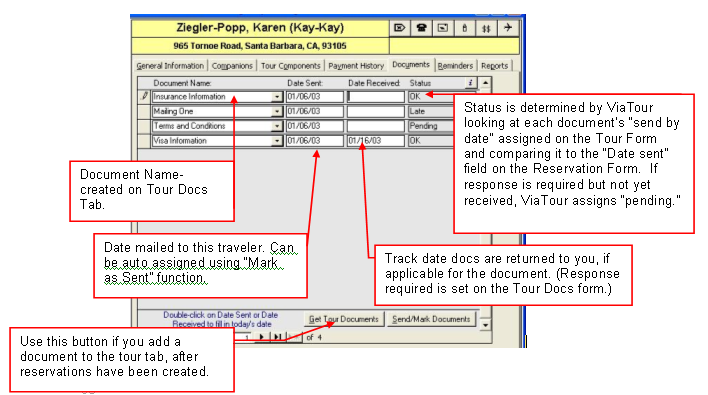
All the Tour Documents specified for the tour during tour setup appear on this tab for each traveler.
Use this form to keep track of which documents have been sent to each traveler on which date, and if a response is required, when it was received.
ViaTour assesses the date sent and assigns the appropriate status.
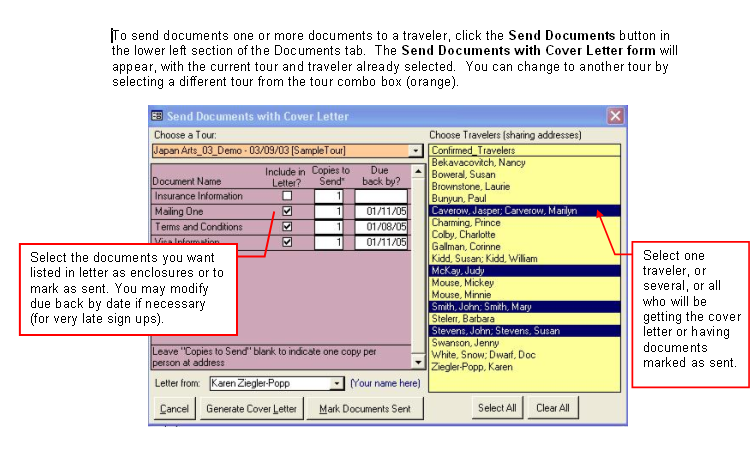
1. Select the document or documents that you wish to send under one cover letter, by checking the Include in letterbox. Adjust the due back by date if necessary (maybe reservation is a late add?)
2. Enter your name as you wish it to appear in the "From" section of the cover letter.
3. Click Generate Cover Letter and the pre-defined document cover letter will appear on the screen. Check it for accuracy, and then print it by choosing Print from the File menu. When you close the letter report, you will be asked it you want to mark all the documents as "sent" with today's date for the current traveler. If you select "Yes," the Date Sent field on the Reservation forms Documents tab will reflect today's date. If you select no, the dates will remain blank, or as they are.
4. If you are not sending a letter, but simply marking documents as sent, click on that button instead.
Related Topics:
Documents for a Tour
Auto marking Documents as Sent to Travelers
Document Status List Report
Document Status Table report
Tour Document Deadlines Report wide format
Tour Document Deadlines Report portrait