Contents
- Index
Working with Mail Merge
All of the address label reports can be exported into excel format for use in Mail Merge letters. To create the mail merge data:
1. Select the appropriate address label report, and preview it.
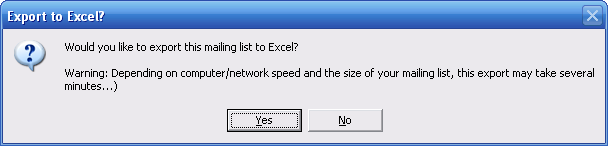
2. When you close the report, say YES when this message appears:
3. If you want to you can elect to export Tour data. This means your excel sheet will include the Tour's Brochure Name and Start and End date.
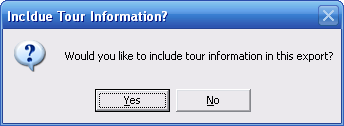
Note: If you include tour data, and you are pulling reservations from many tours, ViaTour will give back a row (result) for every reservation. An address used on multiple reservations will then appear as multiple rows in your excel sheet, and you will need to de-dupe manually. If you say "no" and exclude tour data, ViaTour will return an excel sheet deduped by format Address and salutation.
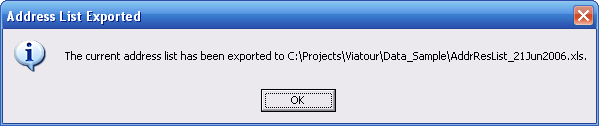
4. Note that the message gives you the File Name and Path. By default ViaTour places this in the same folder where the shared data resides, with this format AddressResList_Today's date.xls.
Note: that if your report is very long (hundreds of addresses) the export will takes several minutes. Once the job is complete this message appears:
See MS Word Instructions on setting up a mail merge document.
1. Open a blank document in MS Word
2. Click on the Help Menu, and MS Word help Menu open.
3. Click on the Answer Index Tab, and under the question, "what would you like to do?" type Mail Merge.
4. The following options are given:
a. Learn about Mail Merge
b. Create from letters
c. Create Mailing Labels
d. Create envelopes
5. Once you locate the instructions you may print them. Follow the steps given. As part of this process you will be asked to locate the excel file as your data source.