Contents
- Index
Navigating the Message Log Form
You can launch the message log form from either main menu (Quick Access or Switchboard) - or from any form by using the keystroke "CTRL + M".
SORT ORDER for MESSAGE LOG:
The top of the form has sort order settings.
By default, all messages display using the sort order "most recent first".
You may change the sort order by selecting and of the : "older first" or "taken by then most recent" or "taken by then oldest".
FILTER OPTIONS for MESSAGE LOG:
On first launch all messages display.
Use the FILTER at the bottom of the form to limit the displayed messages.
As you select a filter the form "refreshes" with the filtered messages.
The record bar will indicate record X of Y (filtered)
Use the CLEAR FILTERS to clear settings
Use the PRINT CURRENT VIEW to print a message list of filtered messages. For example : Status= "Needs Call Back" and Action By = "Mary" gives you "Needs call back by Mary" messages.
ADDING NEW MESSAGES to LOG:
Click on the NEW MESSAGE button (top left of form) or keystroke ALT + N to have a blank record created
The TYPE will default to whatever is set as default in View Edit Look up Codes.
RECIEVED - default to date + time stamp "now" - you can override this when date/time is not now, like when you are getting messages from voice mail.
BY (taken by) defaults to User Name based on Windows Log in in ViaTour table.
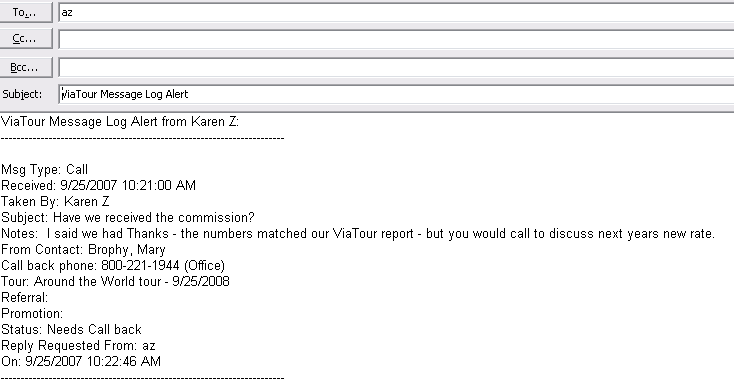
EMAIL MESSAGE ALERTS

This will launch OUTLOOK and push the data of the message into an email.
Email address can be stored with users name in System MAinetance - USer Management
DATA FIELDS of a MESSAGE:
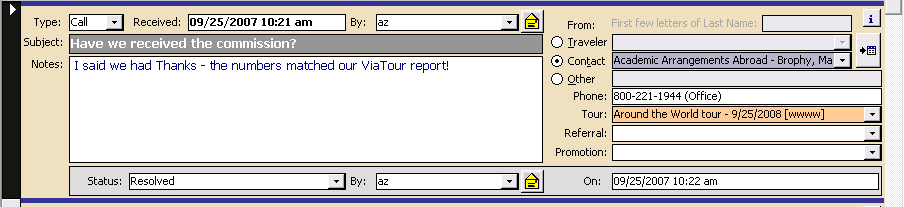
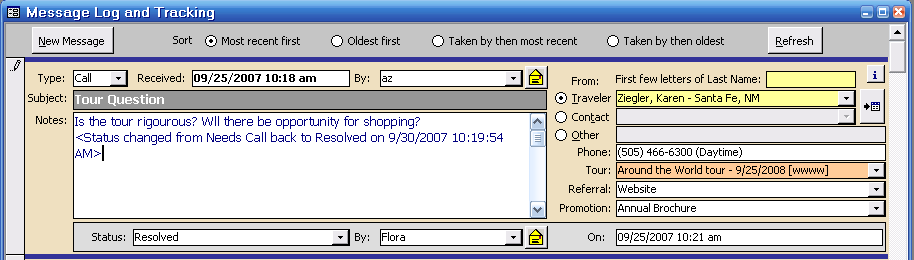
message information - basics data about the message or communication
TYPE - call, fax, email. Specify in Look Up codes what is the default.
RECIEVED - when message was created - time date stamp defaults to NOW- but you can override when using phone machine.
BY - who took the call. User Name displays based on window log in.
SUBJECT - Title field for message
NOTES - Notes about the message
originator of message - either an entity in ViaTour or OTHER or someone not existing in ViaTour data.
TRAVELER - enter first few letters of last name in the small yellow v box to filter the list.
CONTACT - List is alphabetical by Vendor Names, then staff (contact names)
OTHER - some on not in database. Add phone number in phone field
PHONE- will display Travelers primary #, Contacts primary # or type in the number you want stored with the message.
source of message
TOUR - Link message to a tour, if applicable.
REFERRAL- Link message to a referral source, if applicable.
PROMOTION - Link message to a promotion source, if applicable.
status of message - tells where the message currently stands "Resolved?" needs action like "Needs call back?" or has resulted in a status you want to track "Resolved as Confirmed Booking" or "Resolved as No Booking"
STATUS - user defined in Look Up codes with code = MsgStatus
BY - based on user names in ViaTour from WIndows Log On.
ON - defaults to "Now" as the date and time when you change status. A note can be "pushed:" into the notes field indicating status changes.
SAMPLE MESSAGES