Contents
- Index
Set Up Mail Merge Codes in System Maintenance
I. Set Export Path (where merged documents get saved when created by ViaTour)
A. Open System Maintenance
B. View / Edit Lookup Codes
C. Select "ExportDocPath" from yellow list and tell ViaTour where you want to export the mail merge documents (word files) might be: S:\ViaTour\MailMergeExports
II. Set Bookmark types (it is one-time set up)
A. Open System Maintenance
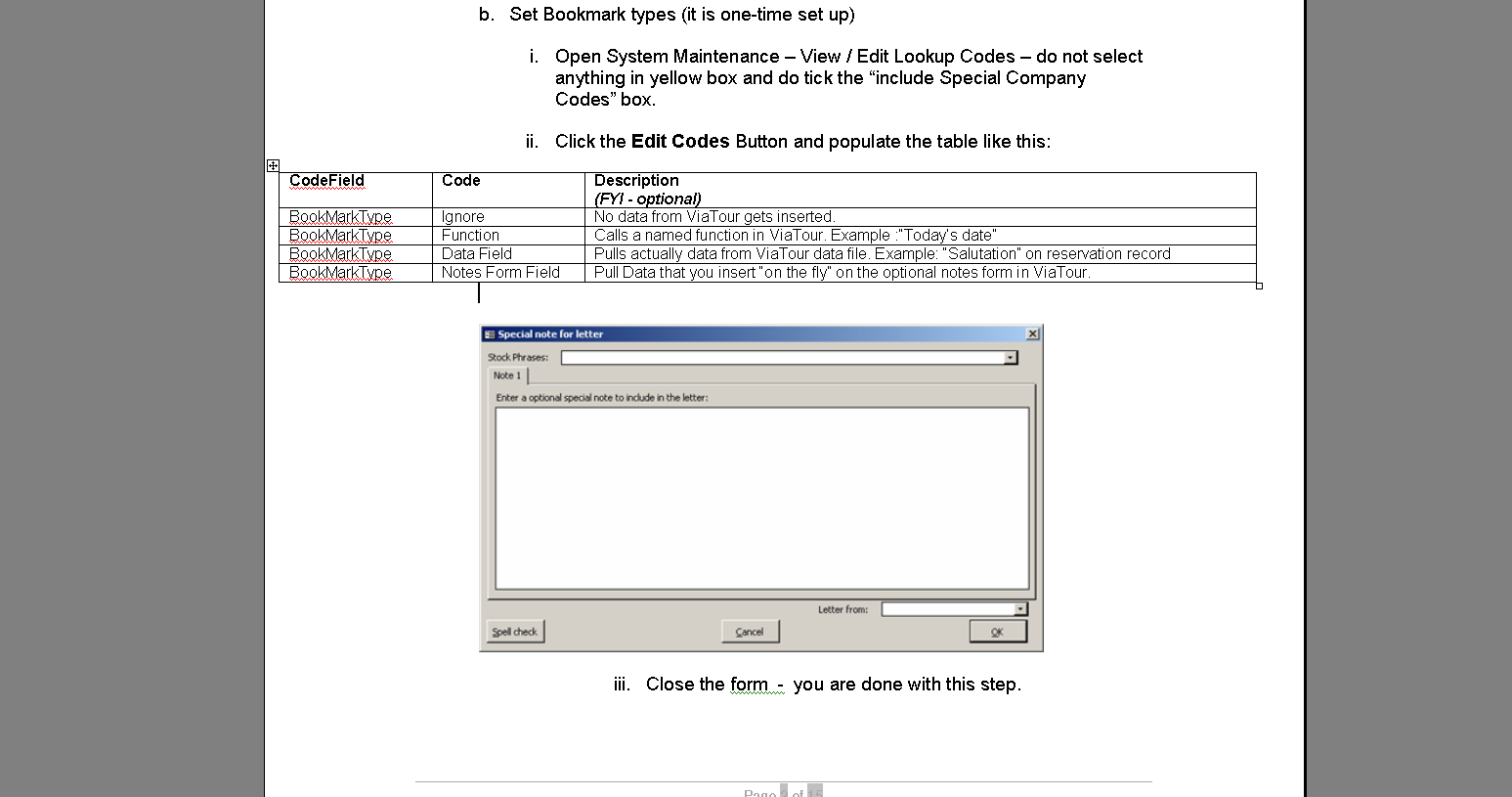
B. View / Edit Lookup Codes - do not select anything in yellow box and do tick the "include Special Company Codes" box.
C. Click the Edit Codes Button and populate the table like this:
III. Set up Codes to identify Group Leaders
If you would like to bring in the name of one staff person who is not a scholar, ViaTour will pick up this from Tour Form - Vendors Tab - Tour Contacts Section where there is a contact assigned with a role that you designate as group leader behind the scenes in Look Up Codes.
You can still use any term you currently have such as host, staff, representative in the ContactRole field, you simply need to tell ViaTour this is a Group Leader in the code table.
Setting Up Codes for what contacts are a group leader:
(1) Open System Maintenance - View/Edit Codes
(2) Find the code called ContactTitle in yellow list box.
(3) Click Edit Codes
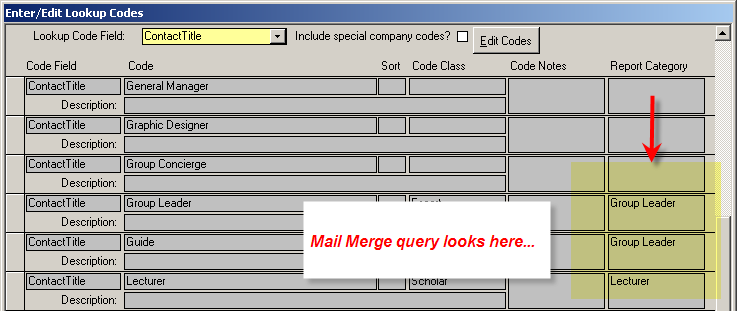
(4) Add the value Group Leader in the column Report Category. The form will look like this:
B. Set up Codes to identify Lecturer
If you would like to bring in the name of lecturer ViaTour will pick up this value from Tour Form - Vendors Tab - Tour Contacts Section where there is a contact assigned with a role that you designate Lecturer behind the scenes in Look Up Codes.
You can still use any term you currently have such as lecturer, staff, study leader in the ContactRole field, you simply need to tell ViaTour this is a Lecturer in the Report Category filed of the code table.
Setting Up Codes for what contacts are a group leader:
(1) Open System Maintenance - View/Edit Codes
(2) Find the code called ContactTitle in yellow list box.
(3) Click Edit Codes
(4) Add the value Lecturer in the column Report Category. The form will look like this:
C. Set up Codes to Identify Tour Operator
If you would like to bring in the name of the vendor who is acting as the tour operator on the tour, ViaTour will pick up this value from the
Tour Form - Tour Vendors Tab in the vendors section where the role is set for operator is marked as primary. If you do not mark primary, no value comes in.
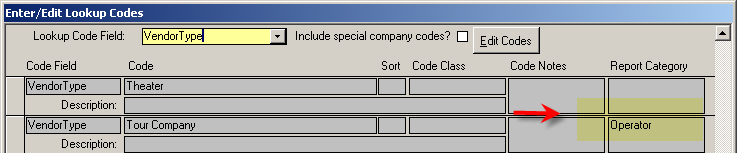
You can still use any term you currently have such operator, receptive operator, tour operator in Vendor Role field, you simply need to tell ViaTour this is a operator in the Report Category field of the code table.
Setting Up Codes for what vendor roles are operator:
(1) Open System Maintenance - View/Edit Codes
(2) Find the code called VendorType in yellow list box.
(3) Click Edit Codes
(4) Add the value operator in the column Report Category. The form will look like this: