Contents
- Index
Add New Mail Merge Template Letters (link them) on report Form
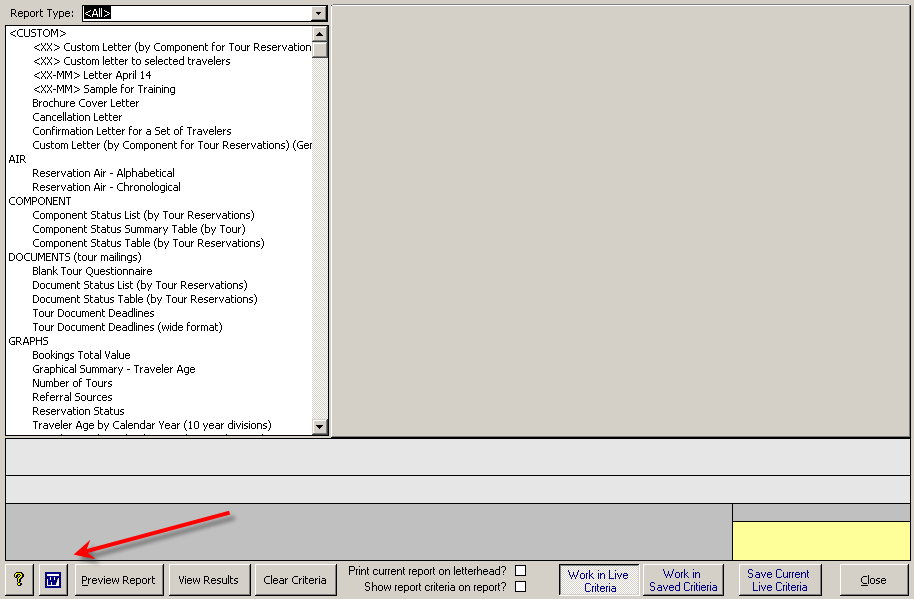
1. Open ViaTour reports Form
2. Click on the Word Icon (blue ) at the bottom left of reports form
3. The MAIL MERGE MAINTENANCE form will open.This form is used to add new reports to Reports form (link to create templates) to map the fields in ViaTour to the template bookmarks (and maintain them if you edit your template) , to change report titles, and to edit the option of using ViaTour's Notes Form.
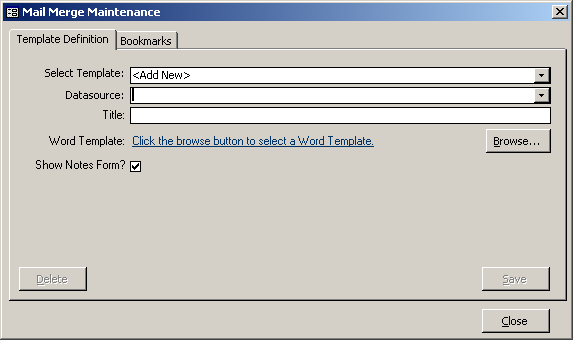
4. For adding new documents leave <Add New>.
5. In Datasource field select: "Reservation". (We only have one data source until we add more queries.)
6. Enter a Title for the letter - this will be added to the reports list after <MM> for mail merge.
7. Click on the browse button and browse to where you stored the letter. (If other ViaTour users will be running the letter, be sure to store it in a shared drive.)
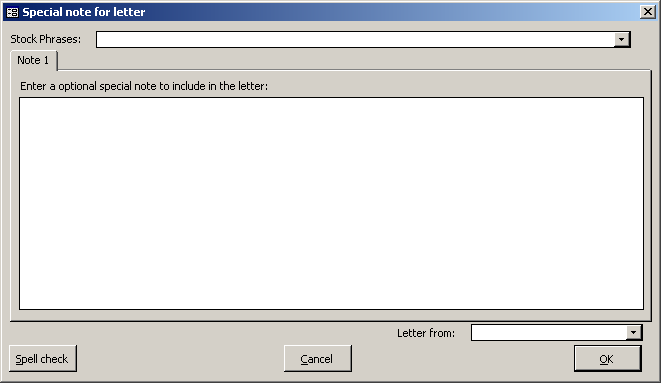
8. If you want to be able to add optional notes, stock phrases or add "Letter From" whenever you run the report, click the "Show Notes Form" check box.
You'll recognize this form from other letter reports you run from ViaTour:
9. Click SAVE on the Mail Merge Maintenance form and your Mail Merge report is added to the report list.
10. Now map the bookmarks by clicking on the Bookmarks Tab.
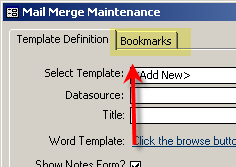
When you first click on this ViaTour will browse out to the word doc, retrieve the bookmarks inserted there and compare them to the available bookmarks and try and "match them" for you. Let ViaTour work on this step, in may take a moment!
11. Now time to match Bookmarks: If you used the bookmark dictionary, this step will be faster for you because the bookmarks named in Word will match our bookmarks in ViaTour. If you have an error in bookmark naming, or a bookmark doesn't match, you can fix it!
In my example below only my bookmark called "Today" (meaning today's date) was not matched. ViaTour set the Book Mark Type to "ignore". However, I want Today's date in my letter (I don't want to ignore it!) so I need to edit the bookmark.
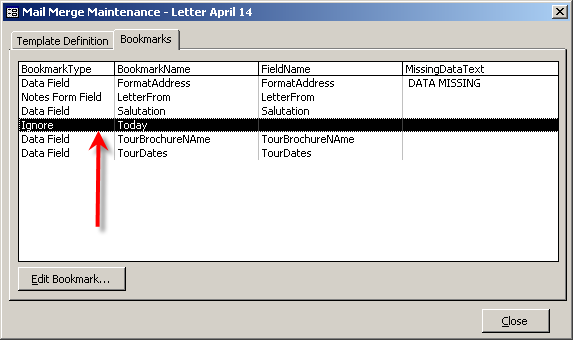
12. To EDIT a bookmark, select the row and click the Edit Bookmark button.
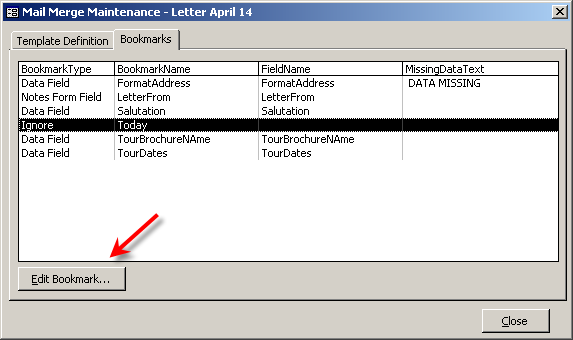
13. When you click the edit Bookmark, a Bookmark Mapping Form opens. Select the type (your bookmark dictionary tells what type must be selected). Uusally you arechanging Ignore to either Data Field, Function, or Notes form field.
Types of Bookmarks:
Data field = data is coming from a field in ViaTour
Function = we have a calculation running to create the data that will go in your letter
Ignore = when you run the letter in mail merge this field will be skipped and no data will be populated in your letter
Notes Form Field = data that you add on the fly on the optional note form (stock phrases can be dropped in and letter from can be dropped in).
14. Then pick a field from the Field Name box.
15. Add missing data text if you wish - ViaTour will display this if there is no data.
16. No wClick Close. You are ready to Output letters!